

How to uninstall IE8 and reinstall Microsoft Internet Explorer 6, 7, 8, 9, 10 and 11 in Windows XP, Vista, 7 and 8? If you have problems with Internet Explorer, you might want to uninstall or remove Internet Explorer, this article helps you do that.
See More ▼ How To Remove Toolbars On Google Chrome, Firefox, IE With Avast Browser Cleanup
Method 1 – Uninstalling IE 11 on Microsoft Windows XP
- Click the ‘Start’ Button –> ‘Control Panel’ –> ‘Add or Remove Programs’.
- Find and select Windows Internet Explorer from the list of software, click on the ‘remove’ button.
- Restart Windows.
Method 2 – Removing IE 11 on Microsoft Windows Vista
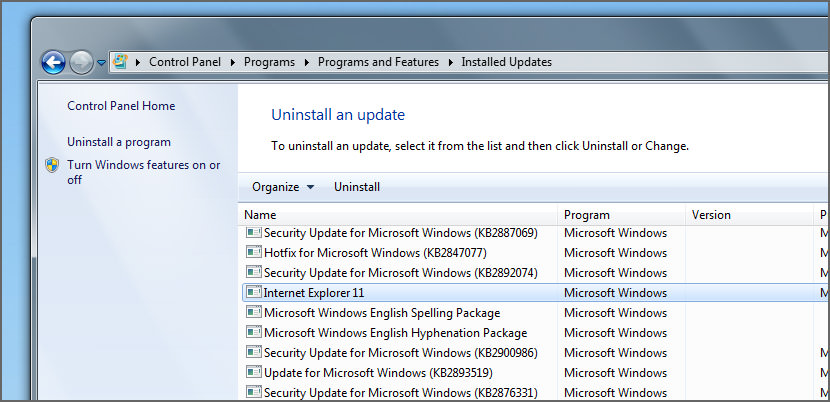
- Click the ‘Start’ Button –> ‘Control Panel’ –> ‘Programs’ (Programs and Features)
- Select View installed updates
- Find and select Windows Internet Explorer from the list of available updates, click uninstall.
- Restart Windows.
Method 3 – Removing IE 11 on Microsoft Windows 7 and 8
- Click the ‘Start’ Button –> ‘Control Panel’ –> ‘Programs’ (Programs and Features)
- Select View installed updates
- Find and select Windows Internet Explorer from the list of available updates, click uninstall.
- Restart Windows.
How to Reinstall Internet Explorer?
- After you restart your computer, open Internet Explorer. The icon is still on your desktop.
- In Internet Explorer, go to ‘Help’ –> ‘About Internet Explorer’
- If Internet Explorer appears in the About Internet Explorer dialog box, then you’ve successfully uninstalled IE8.
GeckoandFly is not a big fan of Internet Explorer. It is advisable to switch to a different browser such as Chrome or Firefox, Opera is still not quite to my liking, and Safari on the other hand is not as fast as it claims to be. I guess there won’t be much of a difference if you have a pretty fast broadband connection. Security could be one of the main priorities. Go for Firefox.
Internet Explorer 11 on Windows 8.1 Hands On
Recommended for you:
 Canon LiDE 20, 25, 30, 35, 60, 100 and 110 Scanner Driver For Microsoft Windows 64-bit
  12 Free Microsoft Windows Uninstaller Utilities – Remove All Files And Registry Keys
  11 Best ISO Mounting Free Software For Creating Virtual CD DVD Drive in Microsoft Windows
  Microsoft OCR – Best Free OCR For Windows, iPhone & Android
I tried IE8, is not good.
I like IE7 so much.
Thanks a lot
I use windows 7 (test version) and soon in October will buy it. It is much better than Vista. But, the problem is that IE 8 is the primary web browser for Windows 7. It is very hard to find out how to uninstall IE 8 in Windows 7. Does anyone know how to uninstall it from Windows 7? Thanks.
i cant find the remove button when click on windows IE. How am i going to uninstall IE8
Reza – you can go into Programs and Features, click Turn Windows features on or off, then uncheck Internet Explorer 8. Then you will be prompted to reboot your computer. Then it’s gone!
my boyfriend uninstalled IE 8 through add/remove programs and now IE is completely unaccessible, and internet options is gone from control panel, unable to do system restore, any suggestions, thanks
Sheryl you have to have a browswer of some sort to access the Internet, as you’ve probably figured out. If your boyfriend doesn’t have Mozilla Firefox or Chrome or another browser, or possibly AOL, he is going to have to get a copy of one somewhere. I don’t know of any other way. Maybe somebody else will be of more help. In the future, make sure he downloads another browswer before removing IE8. Hope there is another way!
In Windows XP, Microsoft Beta 2, is not removable. It is listed in the add or remove program area, but there is no button to uninstall it. I am so frustrated .. it is messing up my computer and even Firefox.
I cant find the ‘remove’ button in ‘Add/Remove Programmes’
I deleted Firefox in order to down load a resume and now I cant find Internet Explorer anywhere on my main computer, it’s gone! Can you help me find it? I’m using my secondary computer which is hooked to the main one via a wireless connection so it has service?!!?
There is no remove button. I have already uninstalled Windows XP SP3. How do I remove internet explorer 8
reza kiram dahanet
hello Sherry Diana and Jennifer you are so nice me and K1 like you :D
you can remove ei8 by this way
1. Close all programs.
2. Click Start
Collapse this imageExpand this image
Start button
, and then click Control Panel.
3. Under Programs, click Uninstall a program.
4. In the tasks pane, click Turn Windows features on or off.
5. In the list of windows features, clear the check box next to Internet Explorer 8.
6. You receive a warning message in a pop-up window. Click Yes.
If IE8 doesn’t have a remove option follow the steps here:
(Go to Run:
type cmd
paste
%windir%\ie8\spuninst\spuninst.exe
press enter.
Frustrating.